Running it yourself
Whatever trigger you chose, you can always start GrillMyCode by hand. That's useful for regenerating a student's questions, trying a different setting, or running an assessment after the deadline.
Start a run
- Open the student's repository and go to the Actions tab.
- In the list on the left, select GrillMyCode.
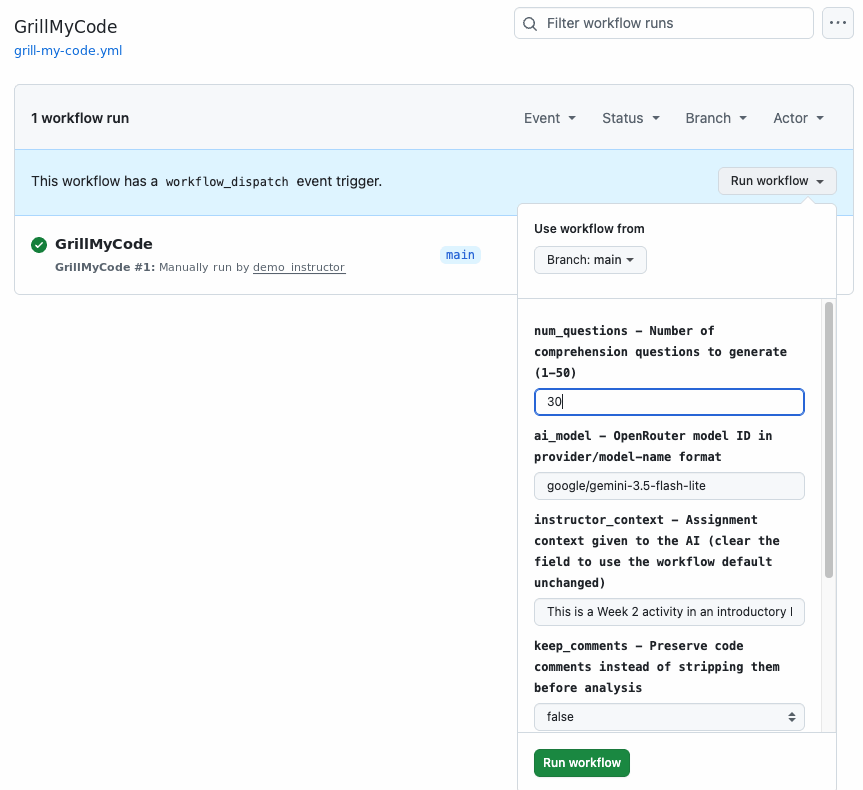
- Select Run workflow, then the green Run workflow button.
The run works exactly like an automatic one. The student's existing issue is updated with the new questions, and the PDF is replaced.
To run a milestone assessment again, choose the tag from the Use workflow from list before starting the run.
It doesn't matter who starts the run. The assessment always belongs to the student who owns the repository, even when you start it yourself.
Change a setting for one run
Normally, the settings in the workflow file apply to every run, and changing one means editing the file. You can instead put chosen settings on the Run workflow form, pre-filled with their usual values. Whatever you change there applies to that one run only.
Set this up in the Workflow Wizard's Trigger step, under Manual run overrides. These are ticked by default:
- number of questions
- AI model
- instructor instructions
- keep code comments
- extra files to leave out
- files to bring back
Pick only settings you actually expect to change. GitHub allows at most 10, and a short form is easier to use.
What to keep off the form
Anyone who can run the workflow can fill in the form, and that includes the student whose work is being assessed. The Wizard therefore never offers:
- Secrets and keys. What's typed in the form isn't secret.
- Include answers. It would give students a "show me the answers" button.
- Settings that could quietly empty the assessment, such as which commits are compared, or whose commits to skip.
The assignment brief setting is offered but not ticked. A student could point it at a file they wrote, although that only steers the topics. Tick it only when you need to try a different brief for one run.
Go deeper: Triggers in depth: how the form's values reach the workflow, and why · Recipe: Manual run overrides