Your questions in VS Code
This page is for students. Your instructor uses GrillMyCode, which posts questions about your code as an issue in your assignment's repository. The GrillMyCode Companion extension shows those questions in VS Code, beside the code they ask about.
You don't have to use it. The same questions are always in your repository's Issues tab on GitHub.
Install it
- In a codespace, the extension may already be installed. Look for the GrillMyCode icon in the Activity Bar, the strip of icons at the side of the window.
- On your own computer, VS Code may offer to install the extension your assignment recommends when you open its folder. Select Install.
- Otherwise, open the Extensions view, search for
GrillMyCode Companion, and select Install.
The first time you install an extension from a publisher, VS Code asks whether you trust that publisher. Select Trust Publisher & Install.
See your questions
- Open your assignment's folder in VS Code. It has to be the repository you cloned from GitHub.
- Select the GrillMyCode icon in the Activity Bar.
- If you're asked, select Sign in to GitHub and approve the request.
Your questions appear once you have pushed your work and GrillMyCode has finished, which takes a few minutes.
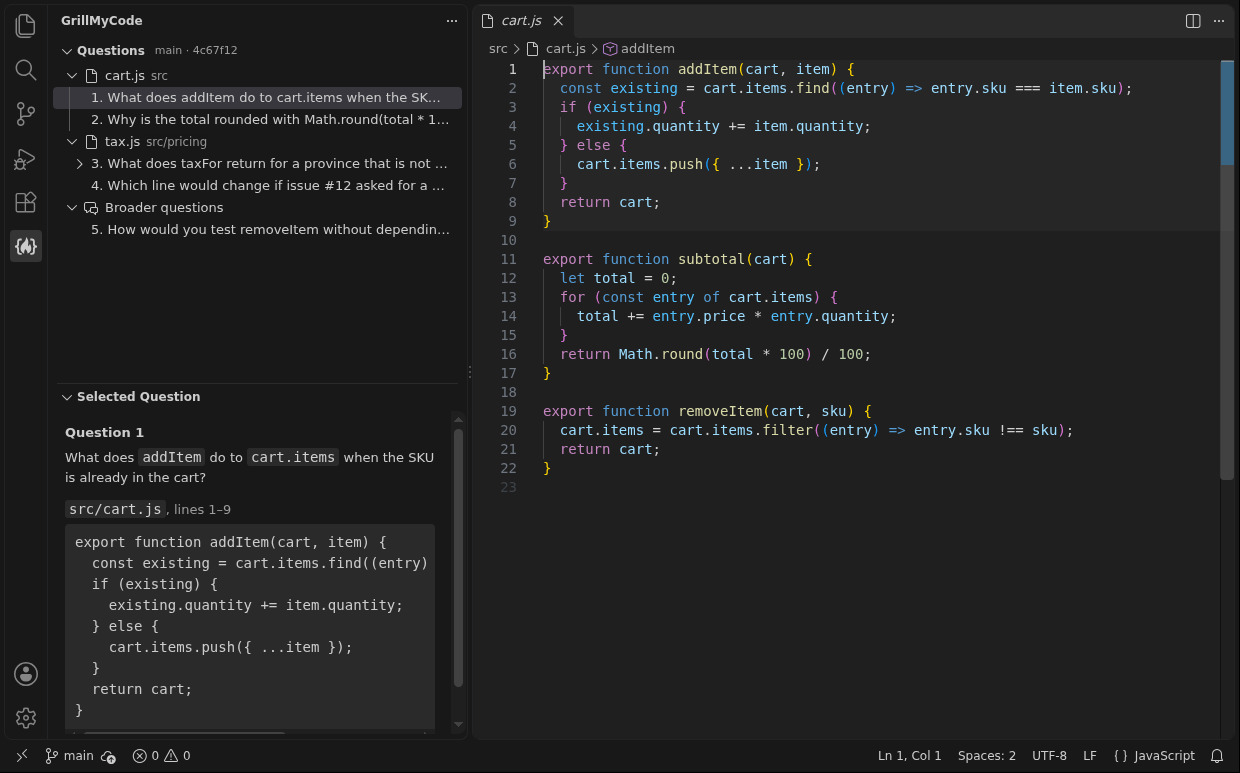
- Select a question to open its file with the lines it asks about highlighted. The whole question is shown under the list, with the code as it was when the question was written.
- Broader questions, at the end of the list, are about your work as a whole and don't point at particular lines.
- After you push again, select Refresh Questions at the top of the list to load the new set.
- If you have more than one set of questions, for example one for each submission, select Choose Which Questions to Show.
When the highlighted lines look wrong
The questions were written about your code as it was when you pushed. If you have edited a file since then, the lines may have moved, and a note above the list says so. The code shown under the question is always the code the question is about.
What the sign-in asks for
The extension reads your questions through your GitHub account. GitHub offers one permission for reading a private repository this way, which is access to your repositories, so that is what the sign-in asks for. The extension uses it only to read your questions. It changes nothing on GitHub and sends nothing anywhere else.
If your questions don't appear
The GrillMyCode view says what it is waiting for:
- "This folder is open in Restricted Mode…" VS Code holds back some features in a folder you haven't said you trust. Select Manage Workspace Trust, then Trust.
- "Open a folder that is a clone of a GitHub repository…" Open the assignment's folder itself, not a folder above it or a copy you downloaded as a ZIP file.
- "GitHub could not find this repository for the account that is signed in." You're signed in to VS Code with a different GitHub account from the one that owns the assignment. Sign in with the right one.
- "These questions were written by a newer version of GrillMyCode than this extension can read." Your copy of the extension is out of date. Select Show GrillMyCode Companion and update it there, then select Refresh. Until then, your questions are in the repository's Issues tab on GitHub.
- "No GrillMyCode questions were found for this repository." Check that you have pushed, wait a few minutes, then select Refresh. If there is no GrillMyCode Questions issue in the repository's Issues tab on GitHub either, ask your instructor.