Showing questions in JetBrains IDEs
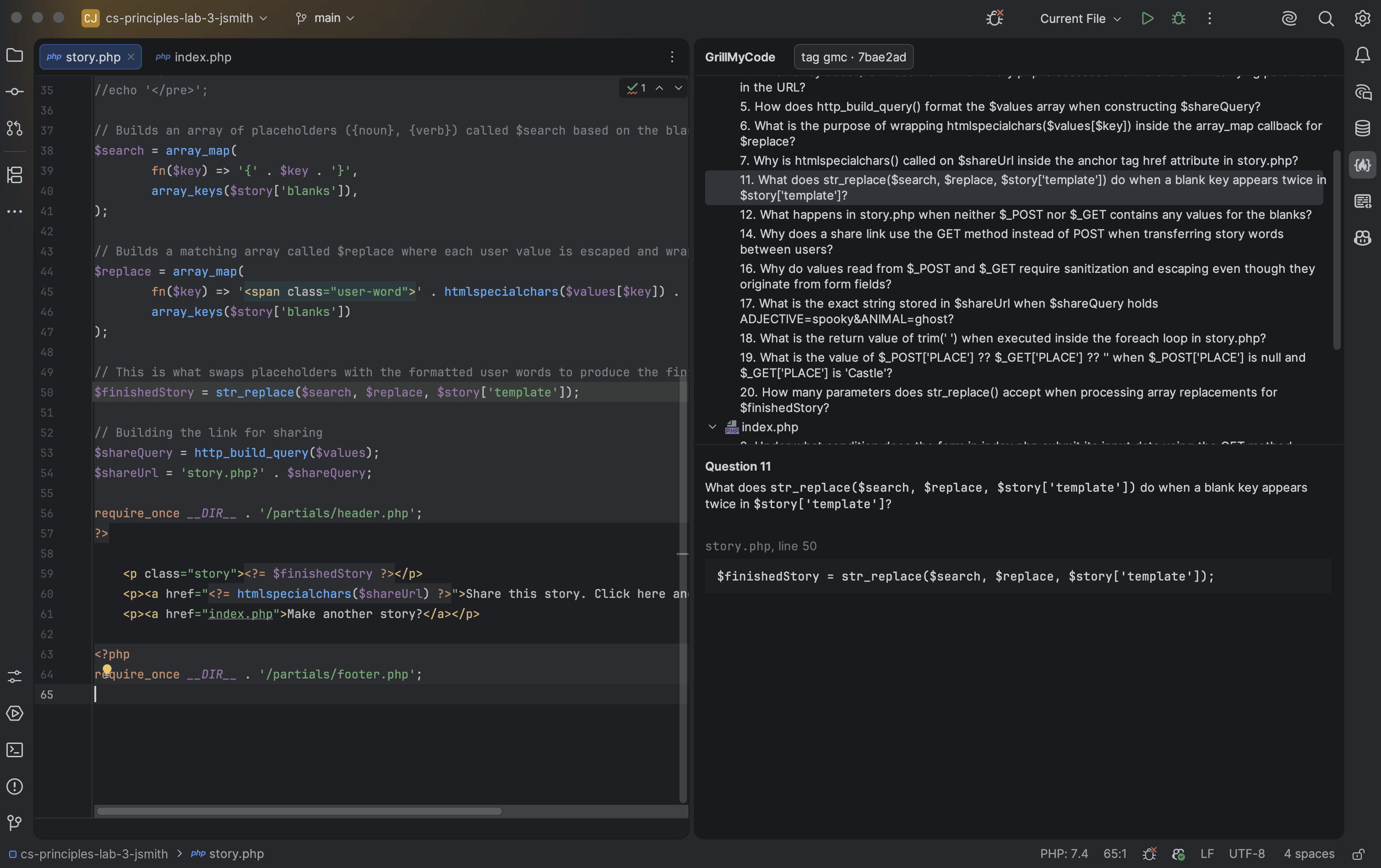
GrillMyCode Companion is also a free plugin for JetBrains IDEs: IntelliJ IDEA, PyCharm, WebStorm and the others built on the same platform, from version 2025.1. It shows a student's questions in the IDE, beside the lines of code they ask about.
It's optional. The issue and PDF work the same with or without it, and nothing in your workflow changes: the plugin reads the questions issue GrillMyCode already posts.
What students get
- A list of their questions, grouped by file, in a GrillMyCode tool window at the side of the IDE.
- A jump to the code. Double-clicking a question opens its files, with the lines it asks about highlighted.
- The whole question, shown under the list with the code as it was when the question was written.
- A note when the code has changed since the questions were written, because the highlighted lines may no longer be the right ones.
The plugin doesn't write questions and doesn't show students the answers.
What instructors get
If you keep a private answer key, open a student's repository and sign in: each question comes with its answer, beside the student's code. Students never see this. In your own test repository, a button switches between the students' view and yours.
The Workflow Wizard opens inside your JetBrains IDE too: select Tools | GrillMyCode | Open Workflow Wizard. There it can try your choice of files on the project's folder, and create the workflow file in it for you.
When you edit your workflow file in a JetBrains IDE, the plugin marks a setting GrillMyCode would reject or ignore, before you push it.
Approve the plugin for your organization
Do this once, before your students sign in.
GitHub lets an organization choose which apps may read its repositories, and turns that restriction on for every new organization. Until an owner of your classroom's organization approves GrillMyCode Companion, the plugin can't read your students' repositories. Each student sees a message telling them to ask you.
You need to be an owner of the organization:
- Install the plugin in a JetBrains IDE, from Settings | Plugins, then select Tools | GrillMyCode | Sign In to GitHub….
- GitHub opens and asks you to authorize GrillMyCode Companion. Next to your classroom's organization, select Grant, then authorize.
If you have signed in before, open GrillMyCode Companion in your GitHub settings and select Grant next to the organization there.
A student can also ask for approval, and GitHub then tells the organization's owners. To answer a request, open the organization's Settings, select OAuth app policy under Third-party Access, then select Review next to GrillMyCode Companion, and Grant access.
Approving the plugin gives no one access they didn't have: it reads only what the signed-in student can already open. If your organization doesn't restrict apps, there is nothing to approve.
How students get it
Students install the plugin themselves, from Settings | Plugins in the IDE, then open the assignment's folder and sign in to GitHub. Your questions in JetBrains IDEs has the steps.
What to tell your students
Adapt this for your assignment instructions:
You can read your GrillMyCode questions inside your JetBrains IDE, beside your code. Install the GrillMyCode Companion plugin from Settings | Plugins, open the assignment's folder, open the GrillMyCode tool window at the side of the window, and sign in to GitHub. Your questions appear once you've pushed and GrillMyCode has finished. Instructions: Your questions in JetBrains IDEs.
What students are asked to allow
Each student signs in to GitHub once, from the IDE. The plugin shows a code and opens GitHub, where the student enters it. The sign-in asks for access to the student's repositories. That is broader than the plugin needs, but it's the only permission GitHub offers for reading a private repository this way.
The plugin uses it to read the questions issue, and to ask GitHub whether the account can see the answer key, which a student's can't. It keeps the sign-in in the IDE's password storage. It changes nothing on GitHub, and it collects no usage data.
Good to know
- It follows the branch the student has checked out. With submission tags a repository can hold several sets of questions, and the student can choose which one to see.
- Questions arrive on their own while the IDE is open and the tool window has been opened once. After a later push, the plugin says a newer set has arrived, and the list changes when the student asks for it.
Go deeper: The JetBrains plugin: which repository and set of questions it reads, when it loads again, opening a question's code, the instructor view, what it checks in a workflow file, the Workflow Wizard in the IDE, and what the sign-in is used for