Keeping a private answer key
Students only ever see questions. With a little extra setup, GrillMyCode also keeps a copy of every student's questions with the answers, in a private repository that only instructors can see. It also builds a multiple-choice quiz for each student that you can import into your LMS.
This page shows how to set it up. It takes about 10 minutes once, and one extra line in each assignment's workflow.
What you get
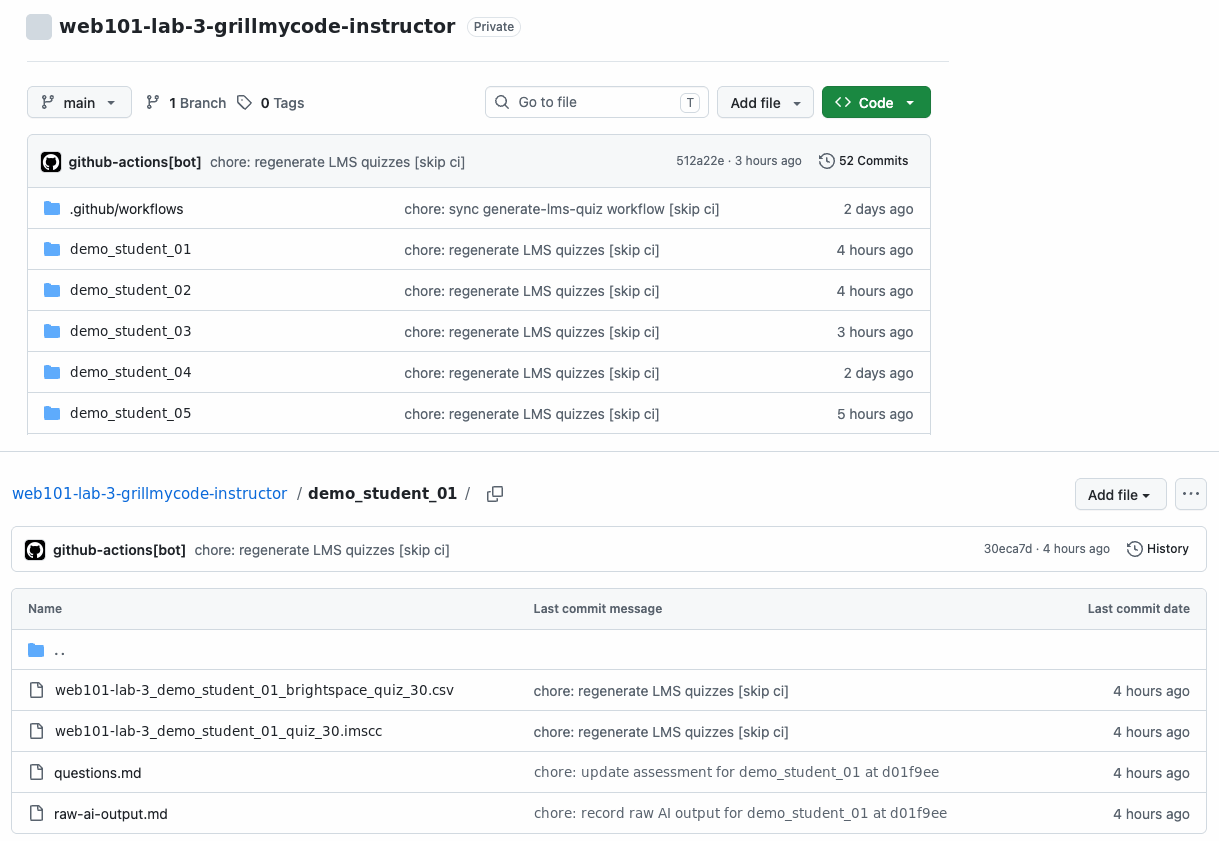
For each assignment, GrillMyCode creates a private repository in your classroom's organization, named after the assignment. For example, cs-principles-lab-3-grillmycode-instructor. Inside, each student has a folder containing:
questions.md: their questions and answers. This is the file to read.- A quiz file (
.imscc), ready to import into Brightspace, Canvas, Moodle or most other LMSs. See Importing quizzes into your LMS. - A Brightspace-only alternative (
.csv), which you can ignore on any other LMS. raw-ai-output.md: the AI's reply before GrillMyCode tidied it. You only need it when something looks wrong.
Every new run for a student replaces their files, so each folder always holds exactly one up-to-date assessment. Students can't see this repository.
One-time setup
Create an access token
GrillMyCode needs permission to create repositories in your organization and write to them. You give it that with a personal access token: a password tied to your GitHub account, limited to specific permissions.
Use an account that can create repositories in the organization; an organization owner can.
- On GitHub, go to Settings → Developer settings → Personal access tokens → Tokens (classic). This is your own account's settings, not the organization's.
- Select Generate new token (classic).
- Give it a name, such as
GrillMyCode answer key, and an expiry date that suits you, such as one year. - Tick the
reposcope and theworkflowscope. Both are needed. - Select Generate token and copy it straight away. GitHub shows it only once.
A fine-grained token works too. See Tokens, secrets and permissions for the exact permissions it needs.
Save it as an organization secret
This is the same process as for the OpenRouter key.
- Open your classroom's organization and go to Settings → Secrets and variables → Actions.
- Select New organization secret.
- For Name, enter
INSTRUCTOR_REPO_TOKEN. - For Value, paste the token.
- Under Repository access, choose All repositories, or Private repositories.
- Select Add secret.
When the token expires, generate a new one and replace the secret's value. Until you do, answer keys stop arriving; see Troubleshooting.
For each assignment
In the Workflow Wizard's Instructor step, answer Yes to the Classroom 50 question and leave Write to a private instructor repository and Label assessed repositories in the organization list ticked. All three are the defaults. Then commit the workflow to the template as usual.
If you already have a workflow file, add these lines under with: instead:
          instructor_repo_token: ${{ secrets.INSTRUCTOR_REPO_TOKEN }}
          label_repos: "true"
That's all. The private repository is created automatically when the first student's questions are generated.
Assignments without a starter repo
An assignment created without a template, or with --empty-repo, has nowhere to ship the workflow from. Add the workflow file to each student's repository directly. The answer key works the same way.
Where to find it
After the first student's run, open:
https://github.com/{your-organization}/{assignment-name}-grillmycode-instructor
The repository is also listed with your organization's other repositories.
Good to know
- It's for Classroom 50 repositories only. GrillMyCode works out the assignment and the student from the way Classroom 50 names repositories. In any other repository, it skips the answer key and adds a warning to the run.
- It changes the questions slightly. With the token in place, the AI also writes three wrong answers per question for the multiple-choice quiz. Students never see them, but each assessment costs a little more. Without the token, only the correct answers are generated.
- Student repositories get labelled. With labels ticked, once a student has questions, their repository shows a
grillmycodetopic and a question count in its description, so you can spot them in your organization's repository list. See Tracking assessed repositories. - Check the run, not just the tick. If the answer key can't be written, for example because the token has expired, the run still succeeds, because the student's questions were delivered fine. The problem shows as an error message on the run's summary page. See Troubleshooting.
Setup summary
| What | When | Where |
|---|---|---|
| Create an access token | Once | Your GitHub account → Settings → Developer settings |
Add the INSTRUCTOR_REPO_TOKEN organization secret | Once | Organization → Settings → Secrets and variables → Actions |
| Add the token line to the workflow | Once per assignment | The Wizard's Instructor step, or the template's workflow file |
| The private repository is created | Automatically, on the first run | {organization}/{assignment-name}-grillmycode-instructor |
Go deeper: Instructor repository internals: folder layout, file formats, how students are identified · Tracking assessed repositories: resubmissions and repository labels · Recipe: Private answer key