How GrillMyCode works
This page follows one student submission from start to finish. You don't need any technical background to read it. Each section ends with a link to the technical details, if you want them.
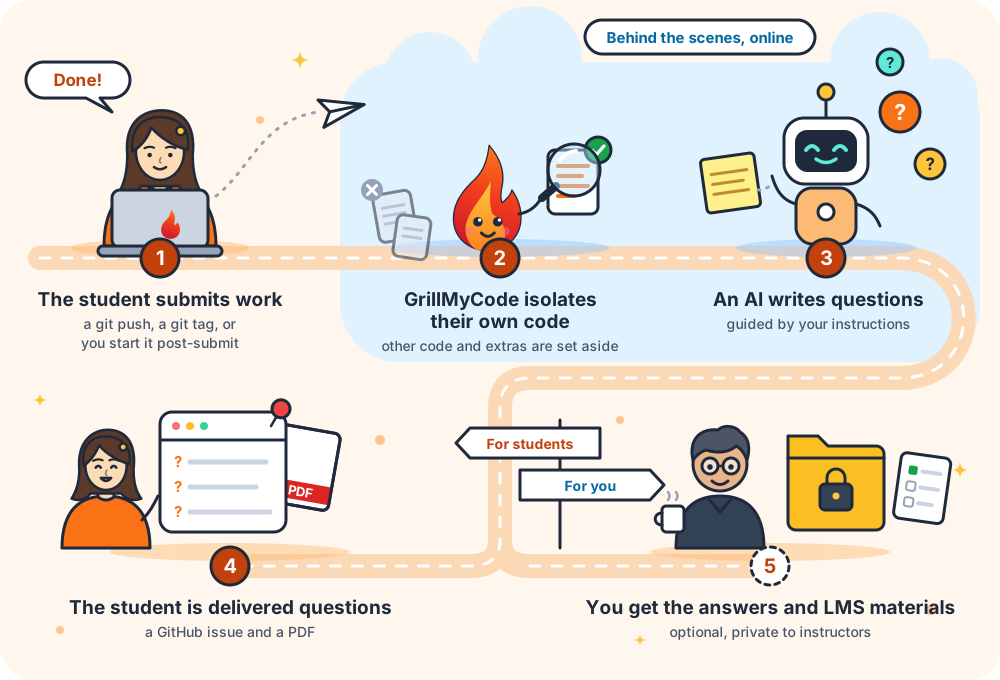
1. Something starts a run
You decide what starts GrillMyCode when you set it up. There are three choices:
- Every push. Each time the student pushes to their main branch.
- A submission tag. Only when the student pushes a tag, a label on a commit, that you've named, such as
complete. It's their way of saying "I'm done". - Only when you start it. From the Actions tab of the student's repository.
Whichever you choose, the work happens on GitHub's servers. Nothing runs on your computer or your students' computers. Each time GrillMyCode runs, it shows up as a run in the repository's Actions tab.
Go deeper: Choosing a trigger · Triggers in depth
2. GrillMyCode finds the student's own code
GrillMyCode looks at everything that has changed since the student accepted the assignment, then leaves out anything the student didn't write:
- Your starter code. The template the student started from is never assessed. If the student edits one of your files, only the lines they added or changed are asked about.
- Classroom 50's setup files.
- Files that aren't code. Installed libraries, build output, lock files, documentation, editor settings, diagrams, data files and images are left out automatically. GrillMyCode recognizes the common languages and frameworks and knows which files each one generates.
- Comments. Code comments are removed so the questions are about what the code does, not what the student wrote about it. You can turn this off.
You can leave out more files for a particular assignment, or bring back a file type that is normally left out.
Go deeper: What code is assessed · File filtering
3. An AI model writes the questions
GrillMyCode sends the student's code to an AI model through OpenRouter, a service that gives you access to many AI models through one account. Along with the code it can send:
- Your instructions, such as "focus on loops, and ask at least one question about off-by-one errors".
- The assignment brief or rubric, so the questions follow what the assignment asked for.
- The rest of the project, if you turn it on: every eligible file left once the files above are left out and the assessed files are set aside. In practice that's your starter code, and the student's earlier work when only their latest submission is assessed. The AI uses it to ask how the new code fits with the code around it; the questions stay on the code being assessed.
The model writes 20 questions by default, each about a specific file and each with an answer. GrillMyCode checks the result before anyone sees it. For example, it drops any question about a file that wasn't part of the assessment.
You pay OpenRouter from a prepaid balance, and one account covers your whole class. With the recommended models, an assessment usually costs less than one cent.
Go deeper: Choosing a model and managing cost · OpenRouter
4. The student gets their questions
The questions arrive in two forms:
- A GitHub issue in the student's repository, assigned to them and pinned to the top of their issues list.
- A PDF of the same questions, linked from the top of the issue.
Students never see the answers. When the questions are generated again, for example after another push, the same issue is updated and a comment records the change. There is always exactly one current set.
Go deeper: What your students see · The assessment issue and PDF
5. You get the answers (optional)
After one extra setup step, GrillMyCode also keeps a private copy of every student's questions with the answers. The copies go in a repository that only instructors can see: one repository per assignment, with a folder for each student.
For each student it also builds a multiple-choice quiz file that you can import into Brightspace, Canvas, Moodle or most other learning management systems.
Go deeper: Keeping a private answer key · Instructor repository internals