Choosing which files are assessed
GrillMyCode only asks about code the student wrote. Most of the time you don't need to change anything. This page explains what it leaves out, and how to adjust that for an assignment.
What's left out automatically
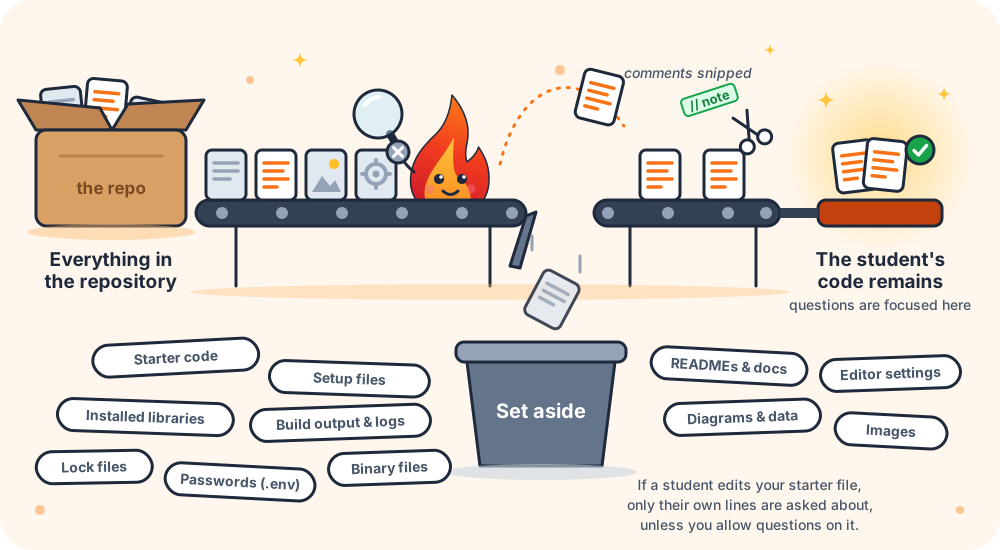
- Your starter code. Everything that was in the template when the student accepted the assignment. If a student edits one of your files, the questions cover only the lines they added or changed. The AI can still see the rest of that file, so it understands what their lines do. You can choose to have a few questions asked about your starter code; see Tailoring the questions.
- Setup files. Classroom 50's files, GitHub workflow files and Git settings files.
- Anything generated or installed. GrillMyCode recognizes the languages and frameworks in the repository (Python, Java, JavaScript, React, Laravel, Unity and many more) and leaves out what they produce: installed libraries, build output and caches. This works wherever the project sits: at the top of the repository, in a subfolder, or as several projects side by side (a monorepo).
- Files nobody writes by hand. Lock files, minified files and logs.
- Environment files such as
.env, which can contain passwords. - Documentation. Markdown files such as
README.md. To give the AI your assignment brief, use assignment context instead. - Editor settings, including VS Code, JetBrains and AI coding assistant settings.
- Diagrams and data. draw.io, PlantUML and Mermaid diagrams, and CSV data files.
- Images and other binary files. These are always left out, and there's no way to include them.
Leaving out more
Sometimes an assignment has files the student didn't write that GrillMyCode can't know about. Examples are test data you asked them to download, a library folder you supplied separately, or generated files from a tool you use in class.
List them in the Workflow Wizard's Files step, under Additional exclude patterns. A few patterns cover most needs:
| To leave out… | Write |
|---|---|
| Everything in a folder | data/** |
| Every file of one type | *.sql |
| One particular file | config.json |
| A folder inside another folder | tests/fixtures/** |
Separate several patterns with commas, or put one on each line: data/**, tests/fixtures/**. Capital letters don't matter, so data/** also covers a folder a student named Data.
Bringing something back
Sometimes the thing that's normally left out is the work. Examples are a UML diagram in PlantUML, a dev container definition in a containers course, or a README in a technical writing assignment.
List it in the Files step under Exclude pattern overrides:
| To assess… | Write |
|---|---|
| All files of a type that's normally left out | *.puml |
| One particular file | README.md |
| A folder that's normally left out | **/.devcontainer/** |
An override wins over every other rule, so anything you list here is assessed even if another rule would leave it out. There is one exception: environment files, lock files and installed libraries come back only when you name them, such as frontend/.env. A broad override such as frontend/** leaves them out.
Trying your patterns first
At the bottom of the Files step, under Try the patterns on your files, choose a folder on your computer, such as your own solution. The Wizard shows which of its files would be assessed and which rule leaves out each of the rest, and updates as you type. Nothing is uploaded. Treat it as an estimate; see Previewing in the Workflow Wizard.
Each student's repository is checked for its languages and frameworks separately, so two students can get slightly different rules. If your starter template fixes the language and the folder layout, tick Use these templates for every student in the preview, and every repository gets the rules shown. Otherwise leave it unticked. See Using the same stack for every student.
For the exact answer, preview a real repository, such as one holding your solution: start a run by hand with the form's preview field set to true. The run lists every file questions could be about, including your starter code if questions may be asked about it, and the files it would leave out, then stops. It generates no questions and costs nothing.
Checking what was assessed
The top of every assessment issue lists the files that were assessed, under Code Files Assessed. If a file you expected isn't there, it was left out. The run's summary page lists every file that was left out, grouped by the rule that removed it, and warns when an automatic rule left out a code file that may be the student's own work; see File filtering.
Go deeper: File filtering: the full list of rules and how patterns work · What code is assessed